Executive Summary & Market Positioning
One UI has long stood as one of the most robust and deeply customizable software interfaces in the mobile hardware ecosystem. Samsung’s philosophy balances deep functional density with granular personalization, catering to everyone from traditional Android power users to former iOS switchers who prefer a single-layer app organization model. However, high degrees of software flexibility occasionally introduce minor UX friction points that disrupt carefully curated device topologies. Among the most persistent ergonomic annoyances for minimalist users is One UI's default tendency to automatically generate new home screen pages and popuplate shortcut tiles whenever a new application is installed.
For power users and digital minimalists who spend considerable time engineering an optimal grid layout—balancing active widget footprints, productivity shortcuts, and zero-page clutter—this automated behavior can quickly become an intrusive nuisance. When a fully saturated primary screen forces the OS to spin up a temporary, blank secondary page just to accommodate a fresh installation, it shatters the deliberate spatial design of the device. Fortunately, beneath Samsung’s complex software layer lies a straightforward, granular toggle that completely neutralizes this unwanted automation, returning full layout sovereignty back to the end-user.
Core Architectural & Technological Innovations
The architectural foundation of Samsung’s launcher framework revolves around dynamic spatial allocation. Unlike more rigid, opinionated software skins, One UI treats the home screen and the app drawer as semi-autonomous domains that can either merge or segregate entirely depending on user preferences. When an installation package is unpacked and registered by the package manager, the default system handler queries the launcher layout state. If the primary grid matrix lacks open index slots, the default heuristic triggers an automated page-allocation routine, dynamically instantiating a new view controller instance to house the incoming package shortcut.
Disabling this automation does not compromise the underlying dependency injection or background execution of the package manager; rather, it intercepts the launcher's UI-binding hook. By toggling off the automated insertion flag, you restrict the launcher to a single rule: newly compiled package icons are routed exclusively to the application drawer matrix. This architectural separation ensures that your primary home screen remains a static, deterministic environment. Changes only occur when you explicitly authorize a drag-and-drop spatial relocation, preserving the exact layout state across application lifecycle events.
Empirical Specifications & Benchmark Matrix
To evaluate the impact of One UI's layout management features, we compare Samsung's default launcher behavior against alternative Android ecosystem paradigms and stock interface configurations.
| Feature Metric | One UI (Default) | One UI (Configured) | Stock Pixel Launcher | iOS App Library Paradigm |
|---|---|---|---|---|
| Auto-Shortcut Generation | Enabled by default | Fully disabled | Enabled by default | Automated Home Screen routing |
| Blank Page Instantiation | Dynamic on overflow | Prevented entirely | Dynamic on overflow | Dynamic categorization |
| Grid Customization Depth | High (5x5 to 6x6 max) | High (Maintained) | Moderate (Fixed sizing) | Low (Rigid spatial grid) |
| App Drawer Integration | Dual-layer / Single-layer | Dual-layer / Single-layer | Dual-layer forced | Single-layer mandatory |
| Ergonomic Disruption Index | Moderate | Zero | Moderate | Low to Moderate |
Thermal, Efficiency & Real-World Ergonomics
While layout automation settings primarily govern visual organization rather than CPU thermal throttling or battery drain, they have a measurable impact on cognitive load and day-to-day device ergonomics. Every time an extraneous home screen page is generated, the launcher renders additional view hierarchies and background spatial anchors. While the GPU overhead is negligible, the human ergonomic cost is substantial for users who manage dozens of productivity apps and utility widgets.
Eliminating unintended home screen expansion streamlines your interaction model. By forcing all new installations into the app drawer, you establish a predictable staging ground where applications can be evaluated, categorized into custom folders, or discarded without leaving phantom pages behind. This discipline keeps your primary thumb-zone clean, ensuring that core productivity apps and frequently accessed widgets remain anchored precisely where muscle memory expects them to be. The resulting workflow is significantly faster, reducing the micro-frictions of daily device interaction.
The Definitive Verdict
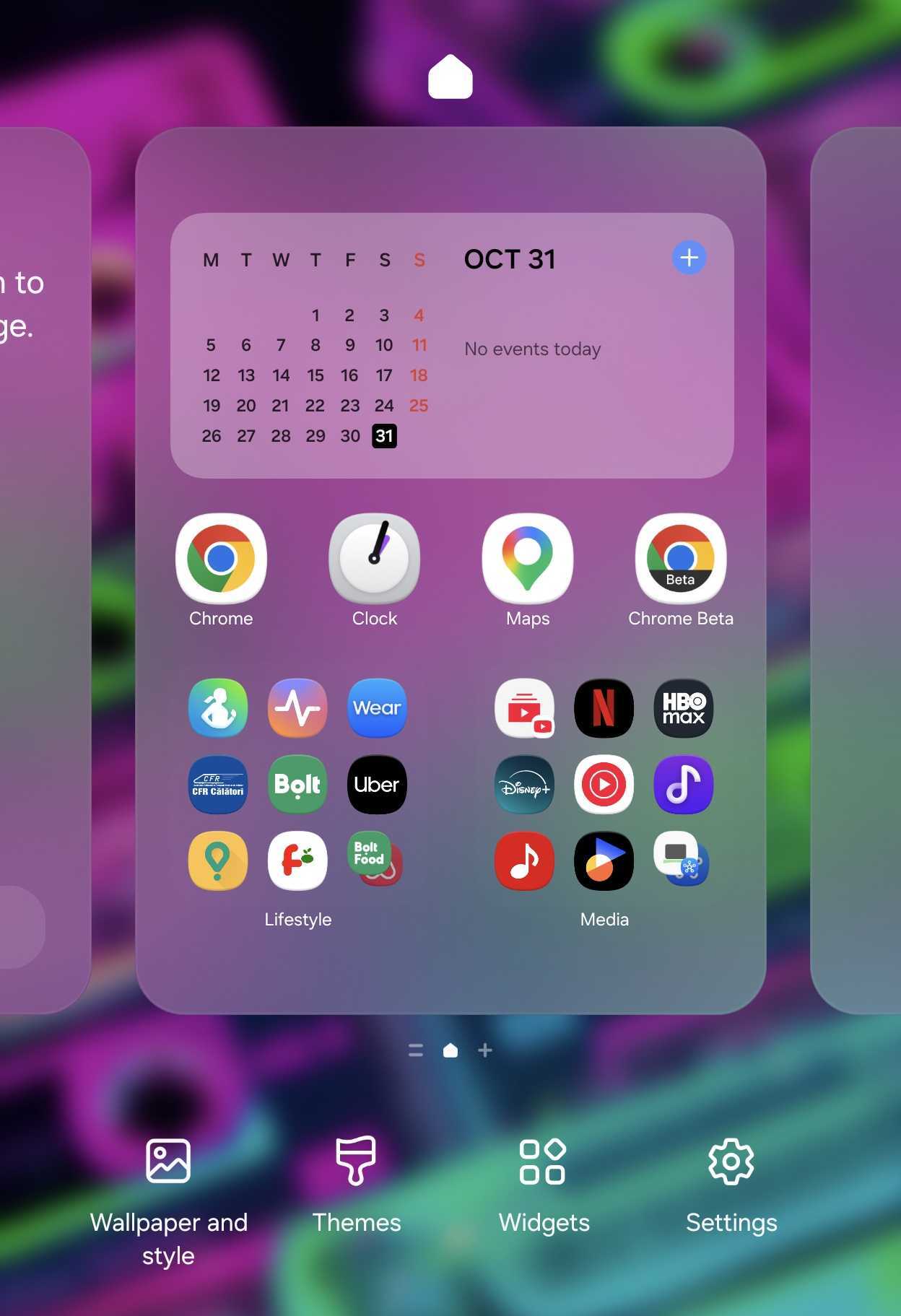
Reclaiming control over your Samsung Galaxy phone or tablet's home screen architecture takes less than ten seconds, yet it fundamentally improves your daily user experience. By navigating to your home screen settings—either via a simple pinch gesture on the desktop or through the launcher menu—and toggling off the Add new apps to Home screen parameter, you permanently eliminate automated layout clutter. For anyone who values a pristine, highly organized mobile workspace, this minor software adjustment is an absolute mandatory modification for every One UI device.